WLED to
XLights

Accurate LED mapping of WLED instances to xLights without manual editing, using a standard iPhone — LiDAR not required.

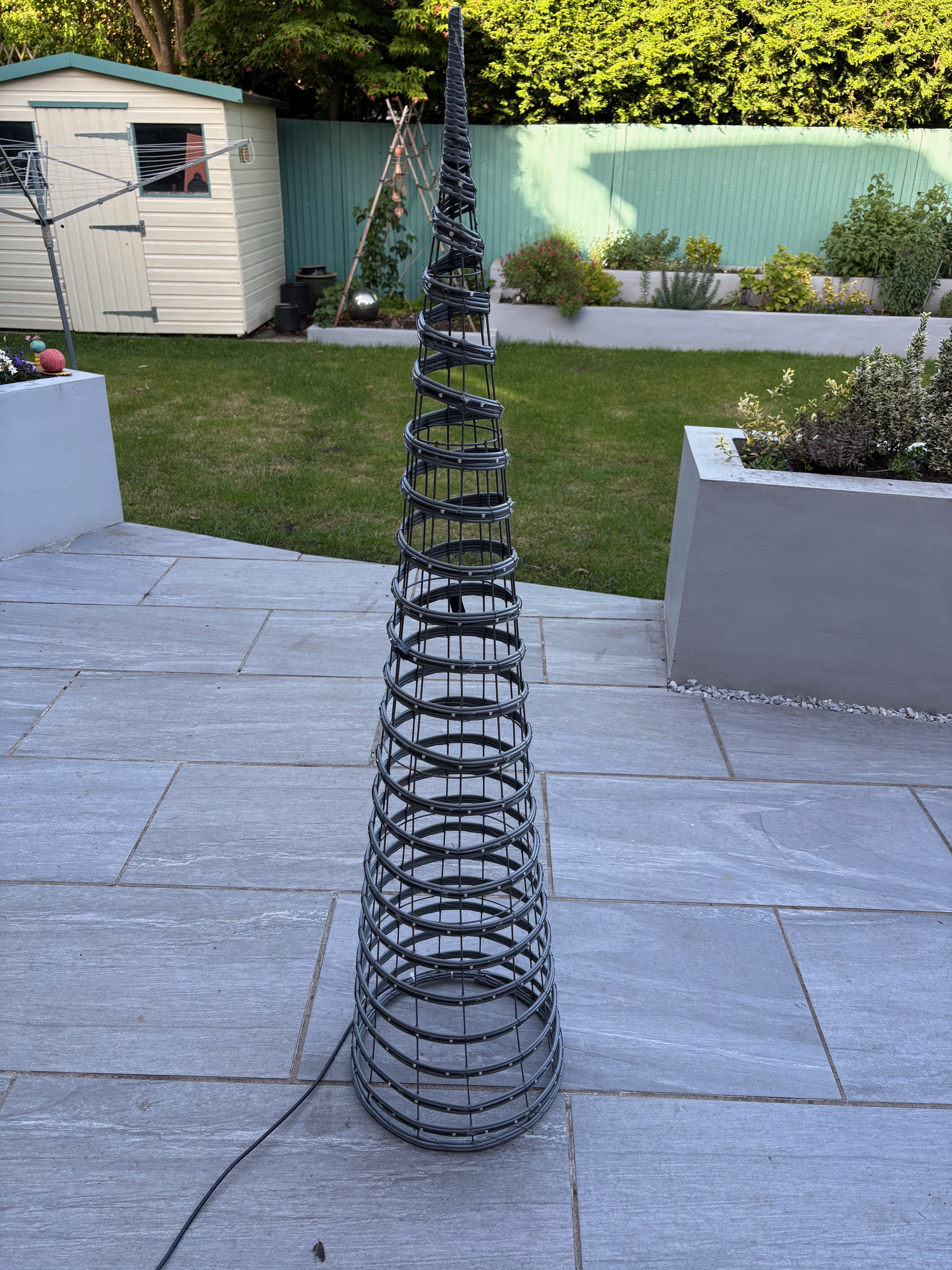
Manual LED mapping

XLights can model standard LED structures, but custom LED layouts and designs are difficult to model. Recording LED positions by hand is tedious, error-prone, and the single biggest barrier to building accurate xLights models for LEDs not conforming to standard objects.

Walk. Scan. Import.

WLED to XLights removes that barrier: walk around your LED installation with an iPhone, and the app uses gray-code AR scanning — no LiDAR required — to automatically detect each LED's 3D position and encode its address in the chain. The result is a .xmodel file you can import directly into xLights.

Essential tools to make it simple.

Automatic mDNS Discovery

The app finds WLED controllers on your local network without manual IP entry. Save multiple named configurations and switch between them with a tap. Manage multiple WLED instances and select which segments to include per controller — selections persisted across launches.

Gray-Code AR Scanning

Optimised binary frame scanning efficiently processes WLED instances with up to 1,024 individual LEDs. ARKit world tracking provides accurate camera pose without LiDAR — works on any iPhone, not just Pro models.

RANSAC Outlier Rejection with 4-Tier Quality Feedback

Each LED is independently scored using RANSAC to filter poor observations. Quality is displayed per LED on the AR so you know exactly where to rescan. You can also turn on the status on the Physical LED's using the light bulb icon and filter the statuses you wish to see.

Good triangulation More scans needed Poor triangulation Interpolated

3D Preview with Interactive LED Editor

Review reconstructed LED positions in an interactive view — pan, zoom, and rotate freely. Axis-constrained drag handles let you move individual LED positions, or delete a computed position and use an interpolated estimate from neighbouring LEDs instead.


  • Wire Visualisation Toggle Toggle led wire visualisation on / off
  • LED indexes Toggle Toggle led index numbers on / off
  • xmodel quantization Toggle Toggle between scanned model and xlights format (quantized)

Runtime Configuration

Configurable settings for scan timings, LED scan colours, blob detection, and LED rejection — with a live AR overlay to tune detection before or during scanning session.

Physical LED Status Display

During scanning, tap the bulb icon to display each LED's quality status on the physical LEDs themselves — see at a glance which areas need more scanning passes.

Intelligent Interpolation

LEDs that are not located during scanning are automatically estimated from their neighbours, keeping the model complete and physically consistent. The LED string topology is used to ensure interpolation is only performed within the same LED string.

Reconstruction Report

A reconstruction report, summarises the scanning session results, providing metrics on the scanned object. The user can choose to perform more scans, preview, or perform the export to an .xmodel file

Adjustable Model Resolution

A cell resolution slider (0.25–20 cm) on the results page lets you balance model resolution against file size, with live RMS quantisation stats to guide your choice.

xLights 3D Custom Model Export

Export a .xmodel file using the standard iOS share sheet — save to Files, AirDrop to your Mac, or send anywhere iOS sharing supports.

From LEDs to xLights

In the App

Connect

Open the app and tap to connect to a WLED controller.

Use mDNS discovery to connect automatically or manually enter WLED IP address.

Save multiple named configurations for different installations.

Select which segments to include for multi-segment controllers.

Scan

Tap "Scan new Object"

Move to a position where the LEDs are visible, then tap "Start Scan".

The scan cycles a binary pattern on the LEDs that are captured and analyzed.

Change viewpoint and repeat.

LEDs resolved from 2 or more scan positions are shown on a live AR overlay in real time.

Report

When scanning is complete the app summarises results, providing metrics on the scanned object.

Go back to perform more scans, proceed to preview, or export directly.

Export options enable the user to set the cell size and flip axis toggle.

Cell Size controls the resolution of the underlying model. LED positions are quantised to fit into this resolution. The "grid" toggle on the 3d preview screen lets you see the effect of the quantisation on the model before exporting.

Flip Y/Z Axes enables models to be scanned horizontally (on the floor), and then exported in the vertical orientation, for wall hung installations.

Preview

Open the 3D preview to inspect results.

An LED position can be moved, by clicking on it and using the gizmo axes to adjust its position.

Or the LEDs calculated position can be replaced with it's interpolated position based on its neighbours.

Export

From the results page - tap the export button

Use the iOS share sheet to email or save the .xmodel file to the Files app or AirDrop it directly to your Mac.

Importing into xLights

Open xLights

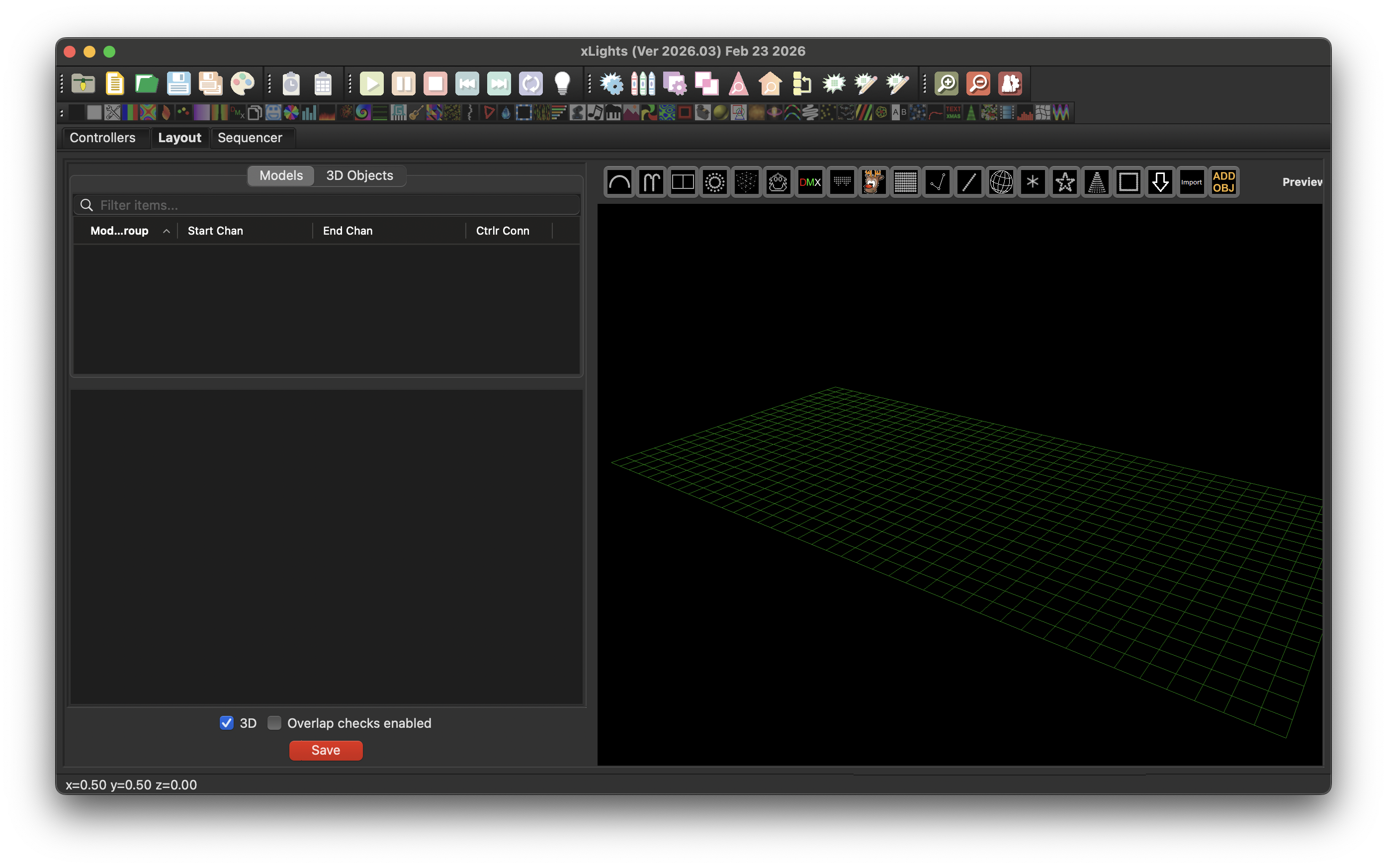
Open xLights and go to the Layout tab. This is where you manage your prop models — each LED fixture lives here as a named object.

xLights (Ver 2026.03) — Layout
xLights Layout tab showing the Models panel on the left and a 3D grid preview on the right

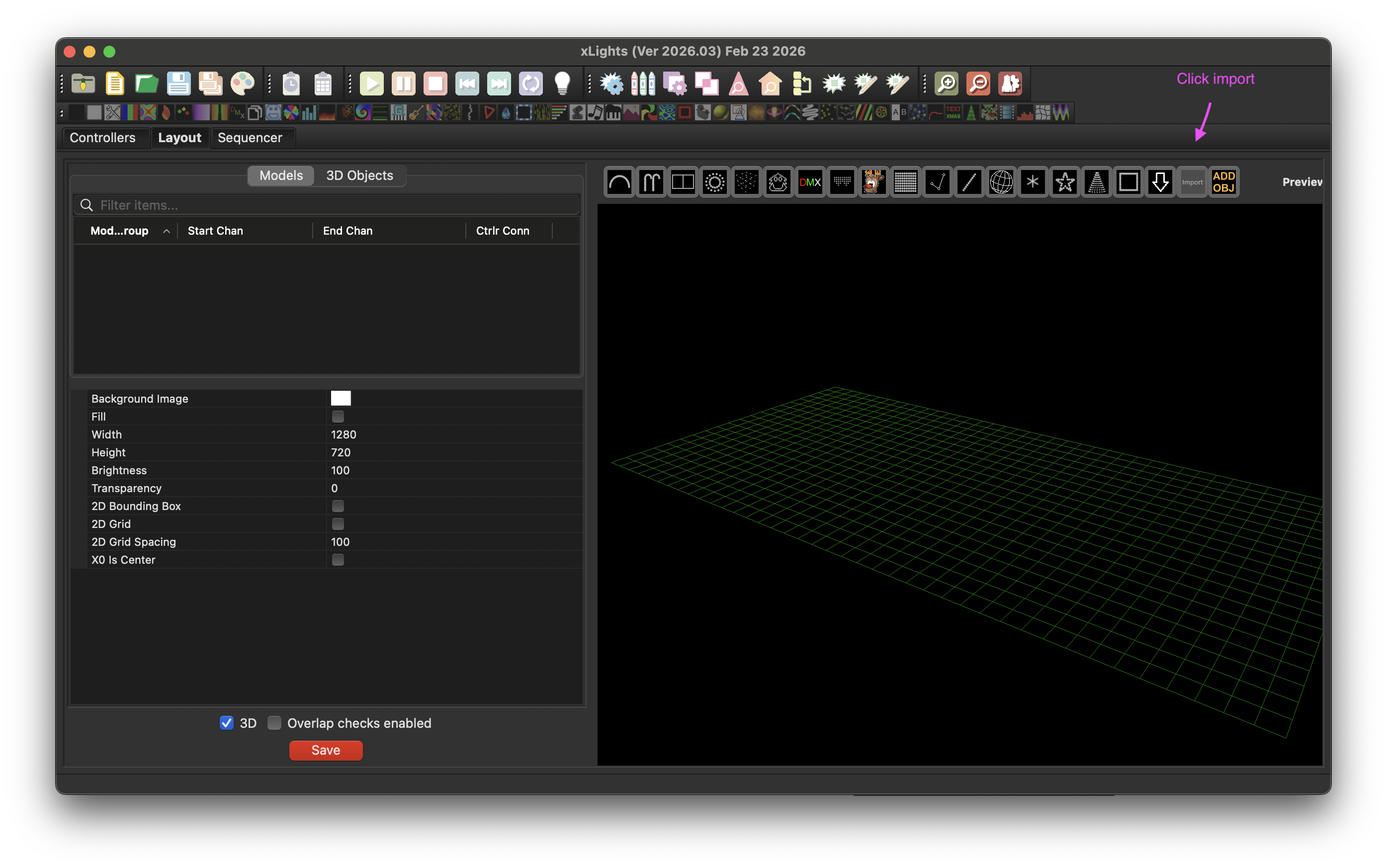
Import Model

Click the Import Model button in the toolbar.

xLights (Ver 2026.03) — Layout
xLights Layout tab showing the Models panel on the left and a 3D grid preview on the right

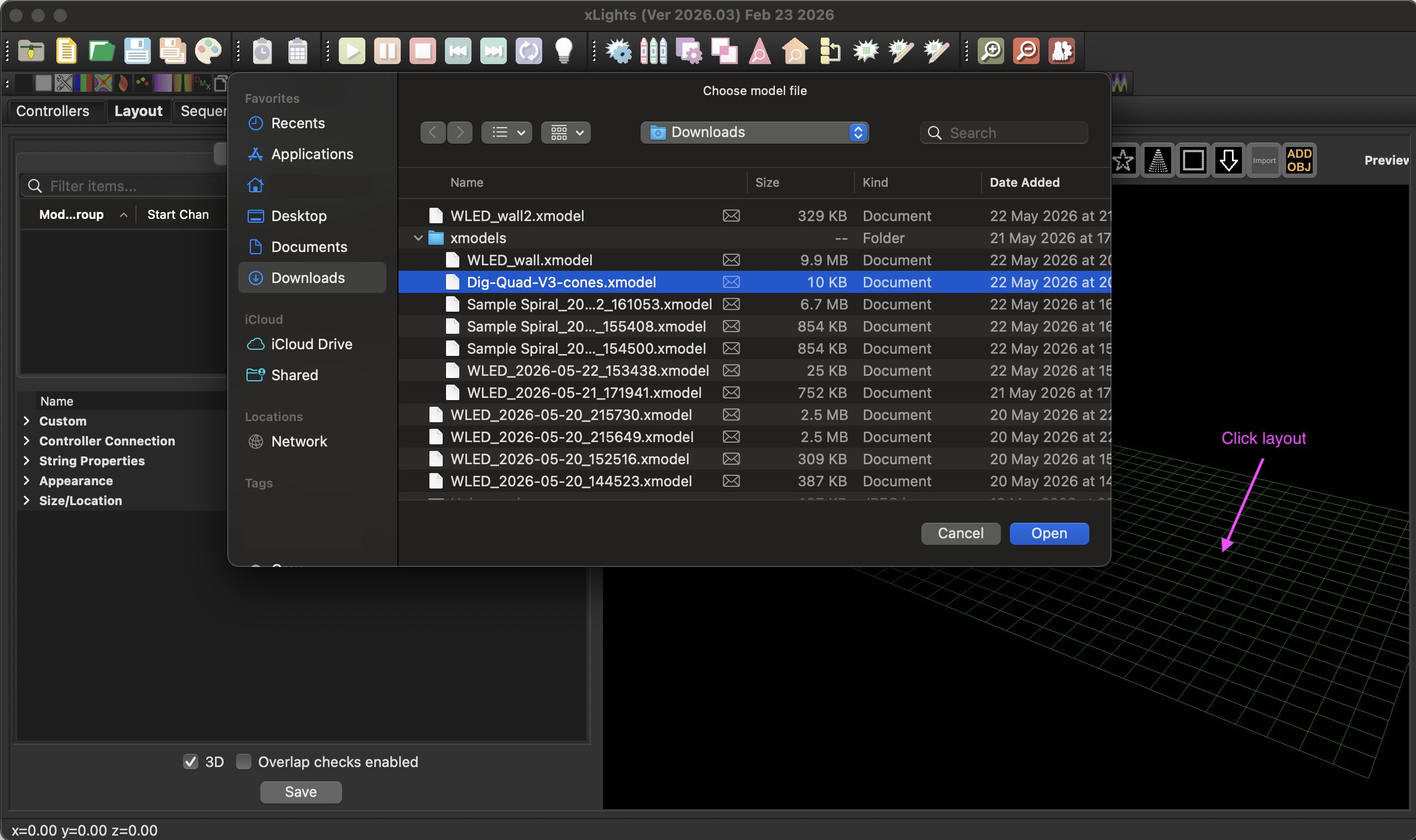
Place Model

Click on the canvas to place the model's position in your layout, then release — a file picker opens.

Select the exported .xmodel file.

xLights (Ver 2026.03) — Layout
xLights Layout tab showing the Models panel on the left and a 3D grid preview on the right

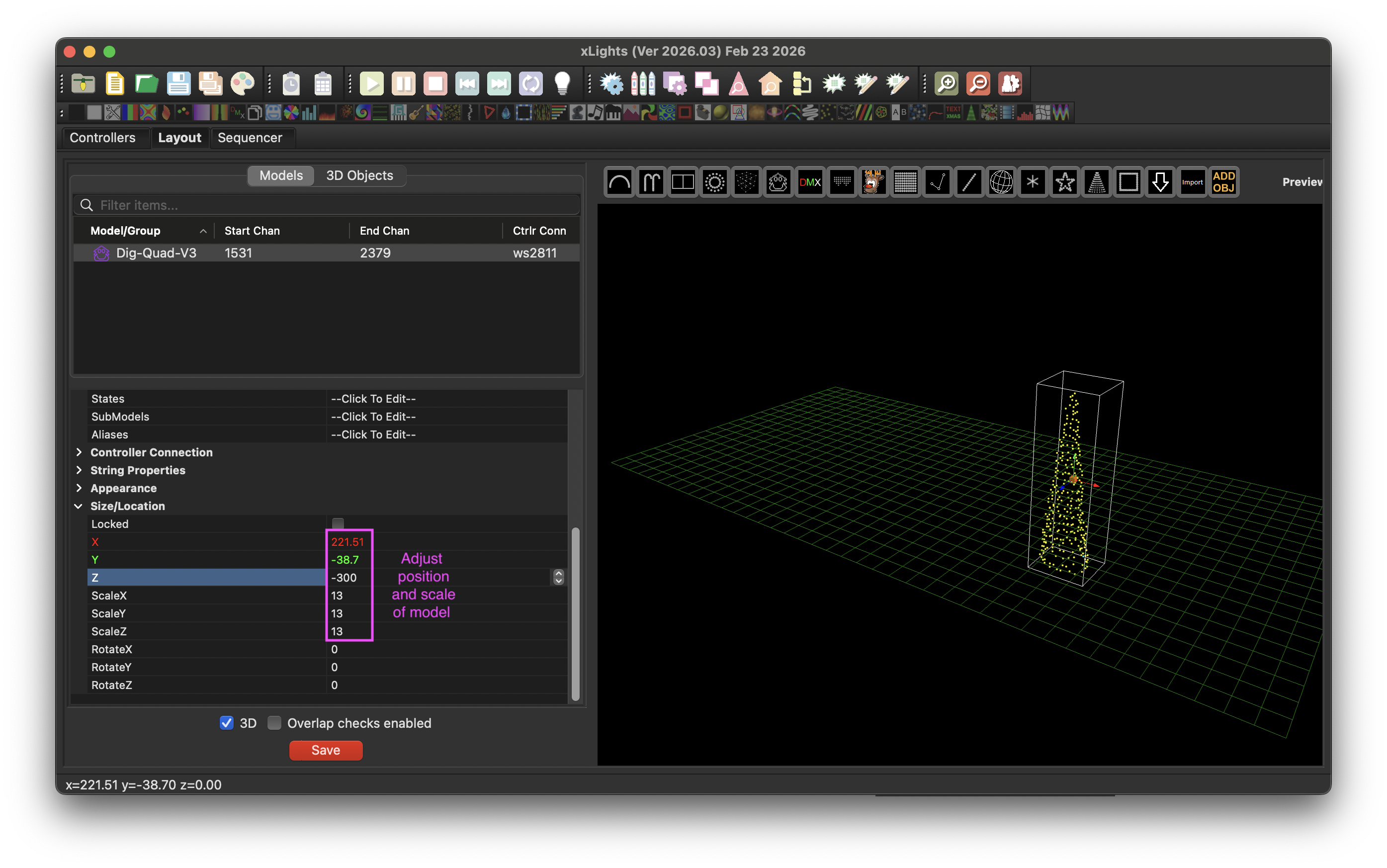
Adjust Size

The custom .xmodel is dropped on to the layout.

Adjust the X, Y, Z properties to move the model.

Adjust the ScaleX, ScaleY, ScaleZ properties to set the model size.

xLights (Ver 2026.03) — Layout
xLights Layout tab showing the scaled custom model imported.

Done

The model appears in your xLights layout as a Custom Model. Rename it and wire it to the correct controller and channel as usual.

What you'll need

Any iPhone with a Rear Camera

LiDAR not required. WLED to XLights uses ARKit's Visual-Inertial Odometry (VIO) for camera pose, which works on all iPhones.

ARKit 6.0 or later (iOS 16 or later)

The app has been tested on iOS 26, but should run on iOS 16 or later.

WLED-Controlled Addressable LEDs

LEDs must be individually addressable — not dumb strips or fixed-colour strings — and controlled by a WLED instance.

Shared Local Wi-Fi

Your iPhone and the WLED controller must be on the same Wi-Fi network. No internet connection required — the app is fully offline.

Get the best results

Getting the Best Results

  • Dim your ambient lighting during the scan — The LED detection looks for bright blobs against a darker background. Strong ambient light reduces contrast and can miss LEDs.

  • Adjust LED colour and detection settings — if detection is poor, open Settings and review blob detection. The live AR overlay shows detected LEDs so you can tune brightness and minimum blob size.

  • Maintain a consistent scanning distance — staying roughly 0.5–1.5 m from the LEDs throughout the scan improves 3D reconstruction accuracy.

  • Do multiple passes — the app retains the best-known position for each LED across passes. Target orange and red LEDs visible in the quality tier overlay.

  • Frame LEDs strategically — for large models or problem areas, frame specific sections of the LEDs to get better detection, rather than trying to capture everything at once.

  • Scan components of scene separately — Scan each item in your scene separately, smaller components (with fewer leds) scan faster, and separate components are better managed/aggregated in xlights layout.

  • Use segment selection for controllers with multiple components — if your WLED controller drives multiple components, segments can be used to select which component should be scanned.

Honest Limitations

  • Lighting conditions affect detection — scanning in bright ambient light makes LED blobs harder to detect. This is the most common cause of low reconstruction quality.

  • Hold the phone still when scanning — scans take about 1 second. Hold steady, or use a tripod for best results. Excellent results can still be achieved hand-held.

  • Scanning distance affects accuracy — standing too close or too far away, reduces triangulation quality. Maintain a consistent distance throughout each pass.

  • Different viewpoints improve triangulation — maximising the angle between successive scans improves accuracy. Avoid scanning repeatedly from the same position.

  • LEDs must be individually addressable — the app works by cycling patterns on individual LEDs. Dumb strips, fixed-colour strings, or non-addressable LEDs cannot be scanned.

  • LEDs must be point light sources — blob detection requires LEDs to be visible as distinct points. Heavily diffused LED light makes candidate detection unreliable.

Try everything free

Download the app and use every feature for free, including one free export. When ready, pay or subscribe for unlimited exports.

Try before buy

Free

No payment required

  • Unlimited WLED connections
  • Unlimited scans
  • Full 3D preview & LED editor
  • One free xLights model export
Download Free
Best Value

Lifetime

£9.99

one-off payment

  • Everything in Free
  • Unlimited xLights model exports
  • Forever — no renewals
Download Free

All purchases are managed securely through the App Store. Subscriptions can be cancelled at any time.

Share your feedback

Found a bug or have a feature request? I'd love to hear from you.

Send Feedback

Your data never leaves your device

No Personal Data Captured

WLED to XLights captures no personal data whatsoever.

On-Device Storage Only

The only information stored is WLED controller connection details (name and IP address), saved locally so you can reconnect without re-entering them.

No Analytics or Tracking

No analytics. No tracking. No data leaves your device.

Fully Offline

The app works entirely on local Wi-Fi. No account, no cloud sync, no network calls outside your local network.

Camera Processed On-Device

Camera and ARKit data is processed entirely on-device and is never stored or transmitted.